When a small business needs a server
A server is a computer that works for everyone else on the network. In a small office it usually does three jobs: it holds the shared files, it manages the staff accounts and decides who can open which folder, and it runs software that several people use at once, such as an accounting system or an ERP installed on site. Put simply, a server is the machine the other computers in the office depend on.
Many small businesses no longer need one. If your email, files and accounting already run in cloud services, there may be nothing left that has to live in the office, and a server would add cost and upkeep for little return. A server makes sense when software you rely on has to be installed locally, when your team works with large files that are slow to open over the internet, when you want staff accounts and permissions managed in one place, or when you need full control over where your data is kept.
So the first step is not choosing a model. It is listing what would run on the server and who would use it. If that list is short, a NAS or the cloud may be enough; if it includes a database and many users, you need a server.
Server or desktop: why an office PC is not a server
It is tempting to turn a spare desktop into a server, and for the first few days it works. The difference shows over months. A server is built to run day and night for years, while a desktop is built for a working day with a person in front of it, and that difference in purpose shapes almost every part inside each one.
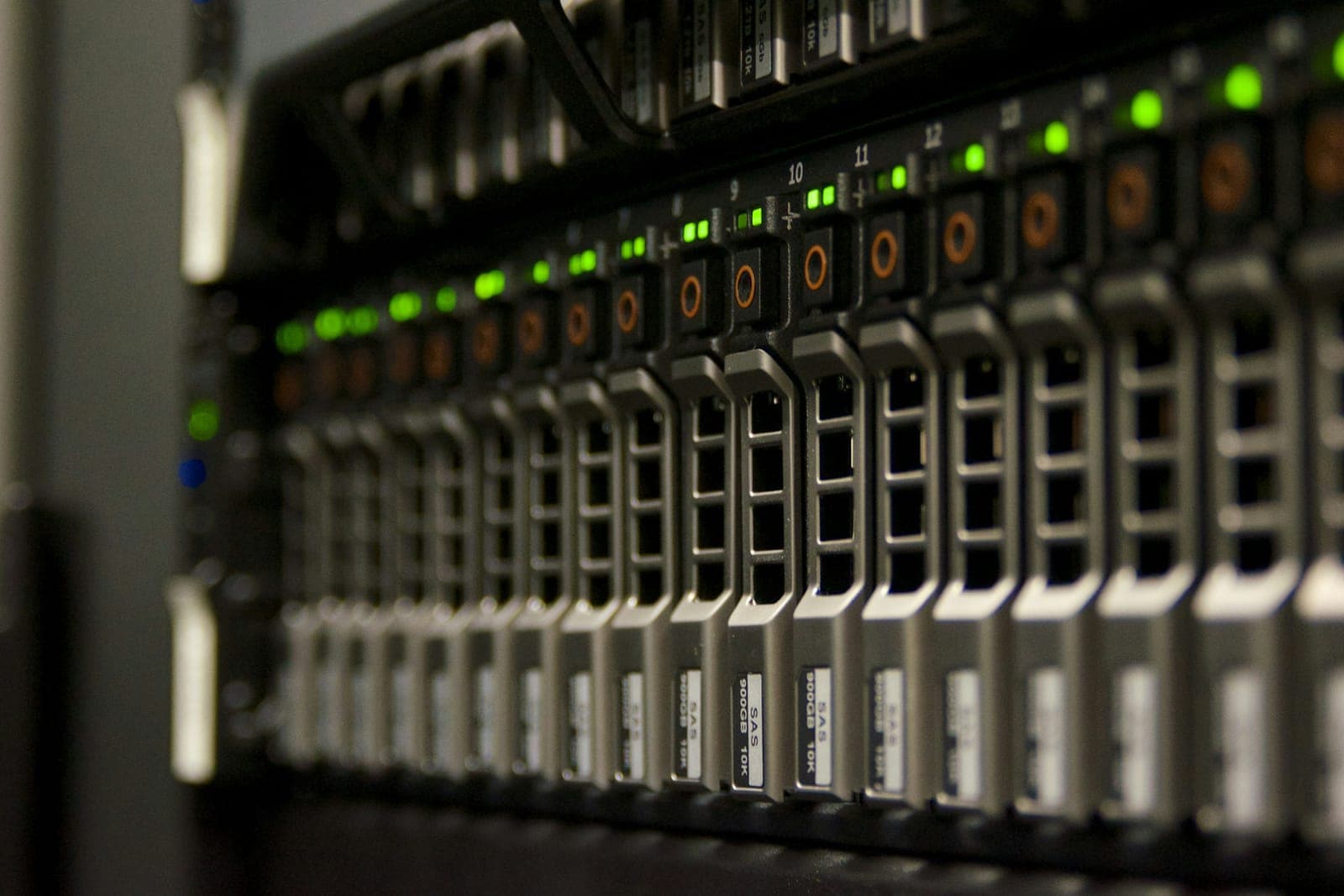
Servers use ECC memory, which detects and corrects small memory errors before they damage a file or stop the system. Many take a second power supply, so one can fail while the server keeps running, and many have drives that slide out of the front and can be replaced without switching the server off. A RAID controller spreads the data across the drives, and at a level such as RAID 1, 5 or 10, one failed drive does not take the files with it. Entry-level models often come with one power supply and drives fixed inside, so check the quote for both if the office cannot afford to stop. Most also have a remote management port that lets an engineer switch the server on, see its screen and check its health without being on site.
An ordinary desktop has few of these, and a workstation, the powerful desktop used for design or engineering, has the processing power but usually not the same protection unless it is ordered with it, so compare the safeguards in the exact configuration rather than the label. A desktop is fine for a test or a very small team, but when the whole office depends on it, the first failed drive or power supply stops everyone at once.
Server or NAS: what each one is for
A NAS, short for network attached storage, is a small storage device that sits on the office network and shares its drives with everyone. It is simple to set up, uses little power and handles shared folders and backups well. For a small team that mainly needs one central place for files, a NAS may be all the hardware it needs.
A server does more. It manages user accounts and permissions, it runs databases and business software, and one machine can host several virtual servers. When the accounting system, an ERP or another business application has to run in the office, a NAS is usually the wrong tool. Some models can run applications and even virtual servers, so the answer depends on the model and on what the software needs, but most are built mainly to store and share files, and software that many people use all day usually needs a server's processor, memory and protection against faults.
Many offices use both: the server runs the systems, and the NAS keeps the backup copies. That NAS is still one local copy, and the 3-2-1 rule also asks for a copy away from the office. Our guide to data backup explains how to arrange those copies.
Tower or rack server: where it will stand decides
A tower server looks like a large desktop and stands on the floor or a shelf. It is quieter, needs no rack and suits a small office with one server and no server room. For most businesses buying their first server, a tower server is the simpler choice.
A rack server is flat and slides into a standard 19-inch rack, usually one or two rack units (1U or 2U) high. It makes sense once you have a server room or a floor-standing cabinet deep enough for servers, or plan to add more servers, because it lines up neatly with the switches and the storage. A wall-mounted network cabinet will not take one. Its fans are louder and it needs proper cooling, so it belongs in a closed room, not next to the team.
The choice follows where the server will stand. Our guide to server room requirements covers the space, cooling and power either type needs.
- Stands on the floor or a shelf
- Quieter, so it can sit near the team
- Needs no rack or cabinet
- Takes more space as servers are added
- Mounts in a 19-inch rack
- Louder, so it needs a closed room
- Needs a deep cabinet and cooling
- Fits more servers in the same space
Cloud server or a server in the office
A cloud server is a virtual server you rent in a provider's data centre and pay for each month. Nothing sits in your office, it can grow in minutes, and the provider looks after the hardware. A physical, on-premise server is bought once, sits on your own network, serves large files at local speed and keeps working when the internet is slow or down.
The choice comes down to cost over time, dependence on the internet, and control over your data. A cloud server turns the cost into a monthly bill that continues for as long as you use it, while a server of your own costs more on the first day and less after. Everything on a cloud server depends on the office internet line, which matters when people open heavy files all day. And with your own server you decide where the data is kept and who can reach it, while with the cloud you ask the provider where it stores your data.
For many small businesses the answer is a mix: email and everyday files in cloud services, and a small server or NAS in the office for the software and files that run faster on the office network. Deciding that mix is part of an IT plan, and it is the kind of question our IT consulting work starts with.
Server specifications for a small business
Base the specifications on the workload, not on the price list, and start by knowing what the server will run and for how many people. A file server for ten users needs a modest processor, while a server that runs an accounting database, several virtual servers or remote sessions for twenty users needs more cores and much more memory.
Memory is where small business servers most often fall short, so plan it generously and leave free slots to add more later. For storage, use fast SSDs for the system and the databases and larger drives for files, arranged in RAID: RAID 1 mirrors two drives, while RAID 5 and RAID 10 use more drives to add capacity and still keep running if one fails. RAID keeps the server working, but it is not a backup, because it copies a deletion or a ransomware attack to every drive at once.
Size the server for three to five years of growth, because that is roughly its working life. Many businesses replace a server after about five years, when the warranty has ended, spare parts are harder to find and newer software asks more than the old hardware can give. That is also why a used server from the open market is rarely a saving: it usually comes without the manufacturer's warranty and with years already gone from its life. A server refurbished by its manufacturer and sold with a warranty is a different case. Our guide to business laptops explains what the invoice does not show about grey-market and refurbished hardware.
How a small business server is priced
There is no standard price for a small business server, because the cost follows what it has to do. It splits into three parts: the hardware itself, priced by its processor, memory and drives; the software, meaning the server's operating system and, for some systems, a charge for each user or device that connects; and the setup, which covers installing the server and its system, moving your data, creating the staff accounts and permissions, and setting up the backups.
Then come the running costs: electricity, a UPS that carries the server through a short power cut and, once it is connected to the server with its shutdown software set up, shuts it down cleanly in a long one, a warranty extension when the first warranty ends, and the maintenance that keeps it updated and checked. A cloud server moves most of these into its monthly bill, which is why the two only compare fairly over three to five years, not on the first invoice.
We start with a survey of what your business runs and how many people use it, recommend a server, a NAS, the cloud or a mix, and quote one fixed price for that scope before the work starts.
- 01List what it will runFiles, staff accounts, accounting or ERP, and any software that runs in the office.
- 02Count the users and the growthHow many people use it today, and how many will in three to five years.
- 03Choose a server, a NAS or the cloudIn most offices: a NAS for files, a server for software, the cloud for what works online.
- 04Pick tower or rackA tower for one server in the office, a rack for a server room or a deep floor-standing cabinet.
- 05Size the specificationsProcessor, memory and RAID drives, with room to grow.
- 06Plan backup, power and warrantySet up the backups and a UPS, and check the warranty, from day one.